Container - PC
Feature Overview
The “Container” interface is the primary place where you interact with running applications. Each “Container” is an independently running instance of an application.
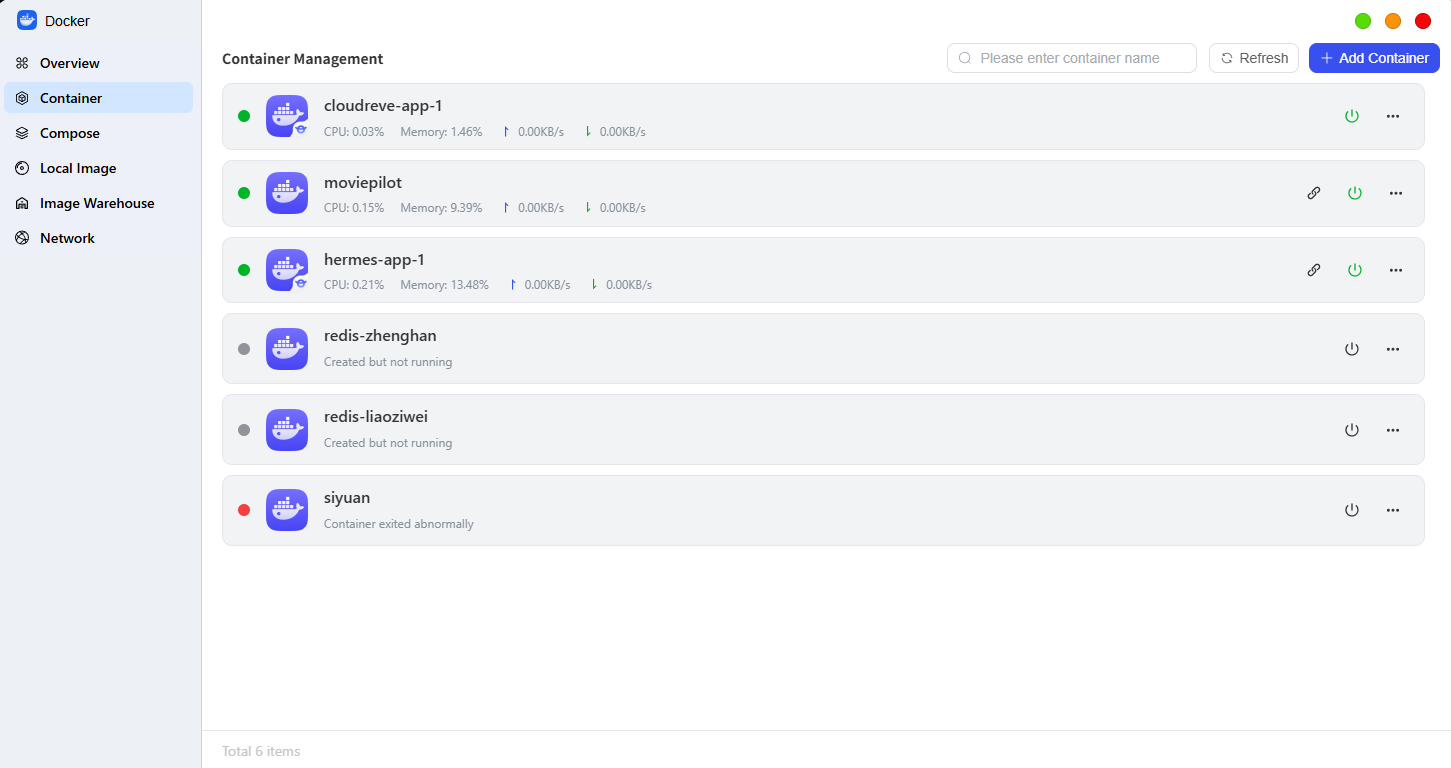
View the list of containers
On this screen, the system displays all containers created on the device. Regardless of how these containers were created, they are all displayed here and can be searched, filtered, and sorted.
Containers typically come from one of the following two sources:
● Containers created manually by users.
● Containers deployed via “Projects” (Docker Compose).
Create a New Container
You can start a new container instance based on a local image.
● Click the "Create" button to select an image from the "Local Images" list for configuration.
● If you cannot find the image you need in the "Local Images" list, go to the "Images" page to download it first, then return to this screen to create the container.
Common Management Operations
You can perform the following control and monitoring operations on containers in the list:
● Status Control: You can start, stop, restart, or delete containers.
● Logs: You can view real-time “logs” of container operations to troubleshoot issues.
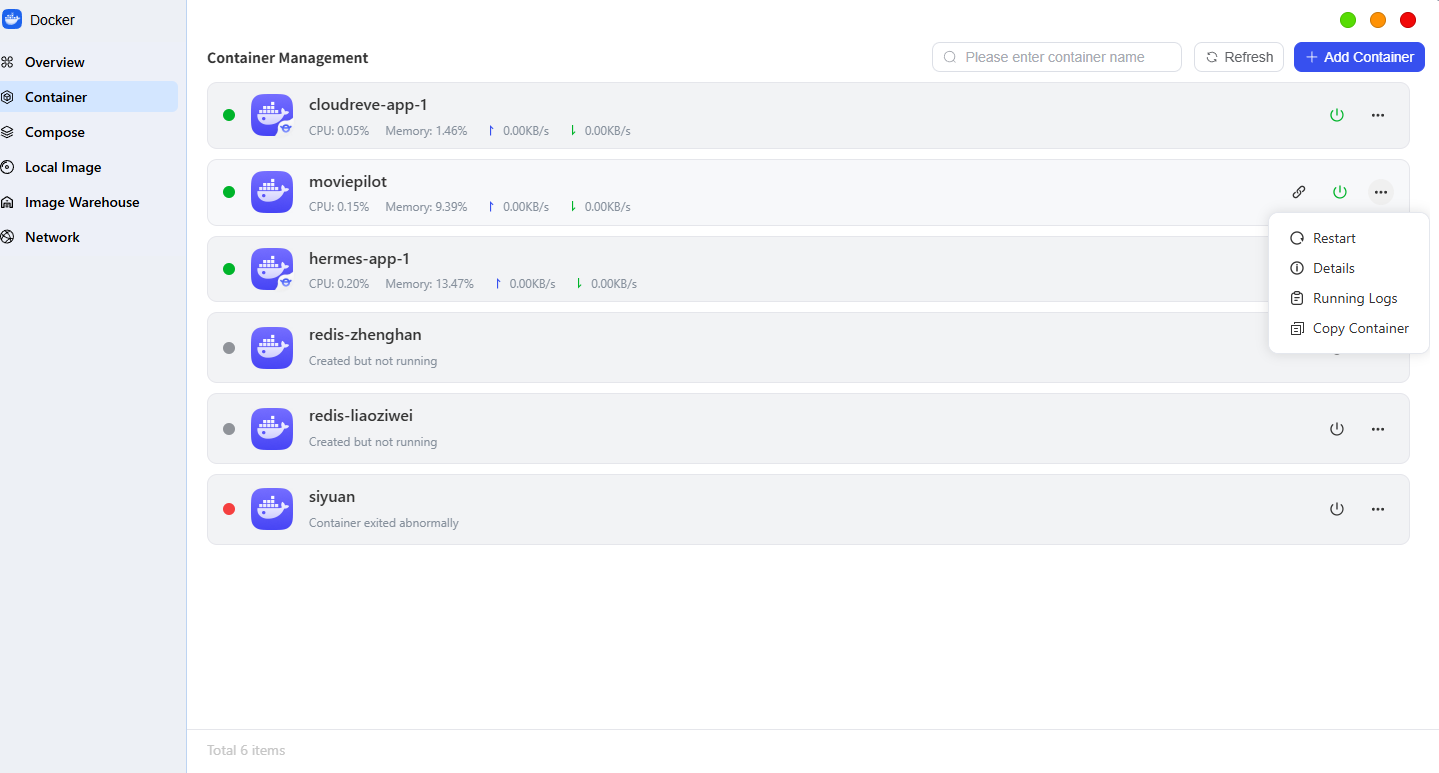
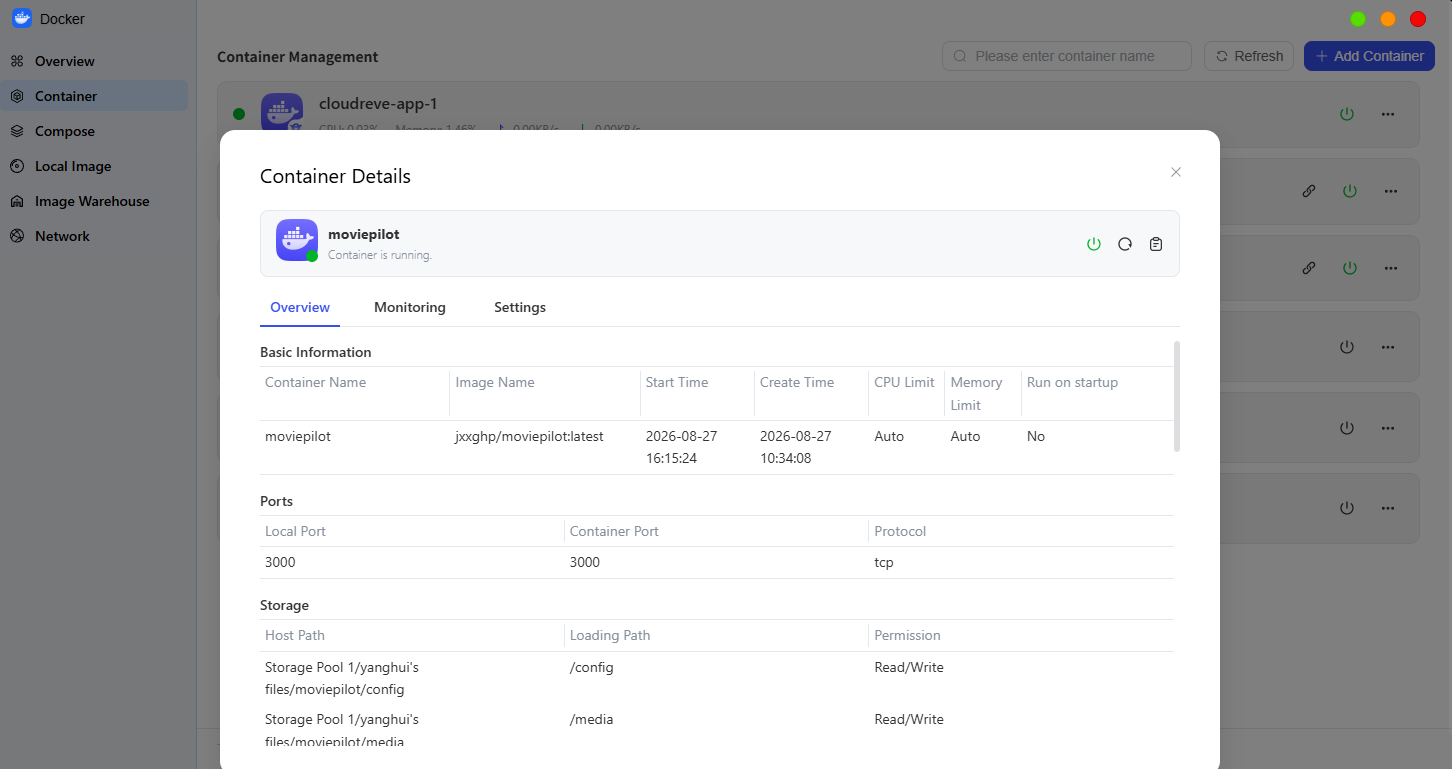
After clicking “Details,” you can view the container details:
● Overview: At the top and on the left side of the interface, you can quickly view basic information such as the container name, image version, runtime status, and network configuration.
● Runtime Monitoring: The status monitoring module displays the container’s runtime status (Running/Stopped/Abnormal) and resource usage (such as CPU and memory) in real time.
● Container Settings: The “Container Settings” module allows